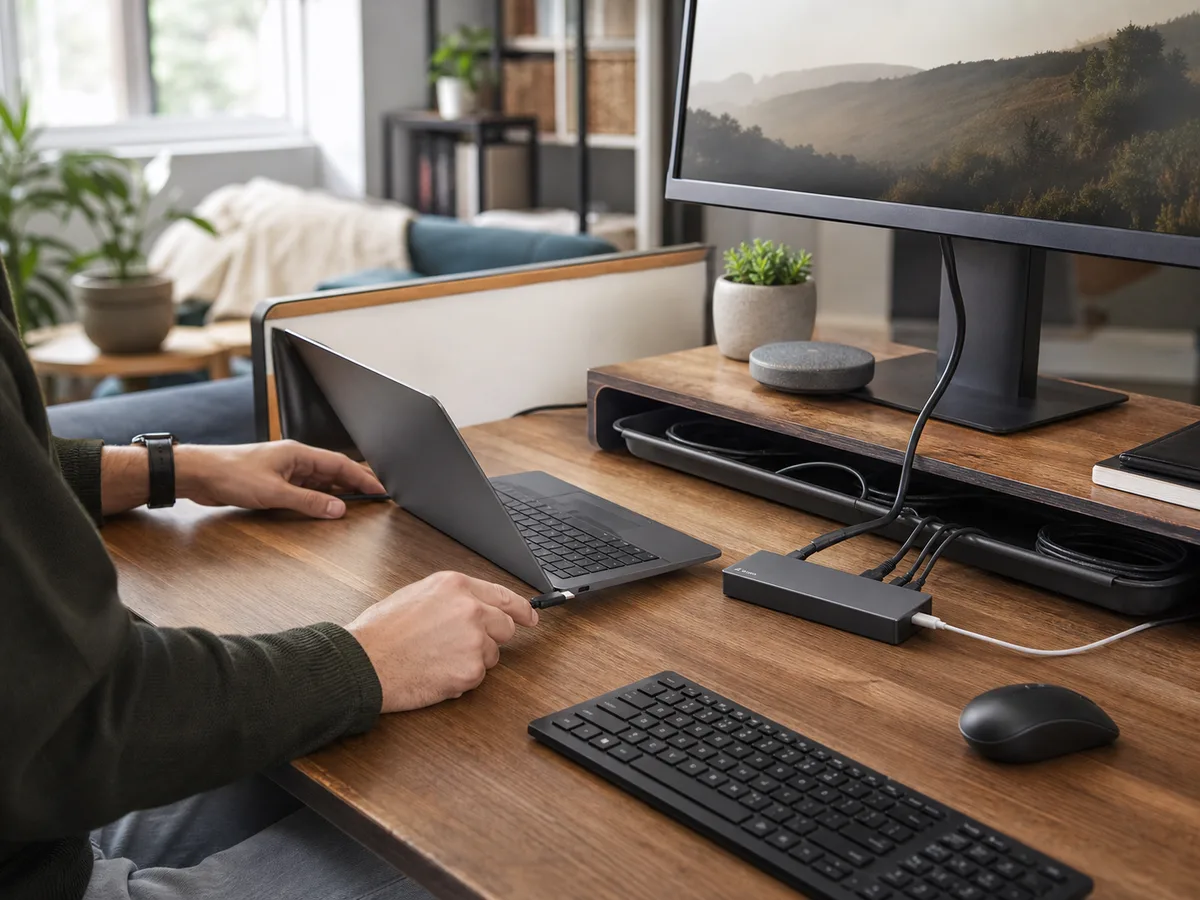
The work laptop arrives and leaves daily, two monitors stay on the desk, and one cable should connect power, keyboard, network, and displays without a morning ritual.
Our take: Choose the simplest dock that explicitly supports the laptop’s display mode and required charging power. Thunderbolt is worthwhile for higher bandwidth or multiple demanding displays, not as a label alone.
Quick Picks by Household Need
Use these product types as a starting point. The right model still depends on measurements, compatibility, and the current details on the retailer or manufacturer page.
Best standard desk
USB-C display dock
- Best for
- One monitor and common office peripherals
- Tradeoff
- Display support varies by laptop
Best demanding setup
Thunderbolt dock
- Best for
- Fast storage and multiple high-resolution displays
- Tradeoff
- Higher price and cable requirements
Best travel kit
Compact USB-C hub
- Best for
- Temporary desks and basic connections
- Tradeoff
- Usually limited power, cooling, and port spacing
Comparison at a Glance
| Option | Best fit | Main compromise |
|---|---|---|
| USB-C display dock | One monitor and common office peripherals | Display support varies by laptop |
| Thunderbolt dock | Fast storage and multiple high-resolution displays | Higher price and cable requirements |
| Compact USB-C hub | Temporary desks and basic connections | Usually limited power, cooling, and port spacing |
What to Look For
Fit and placement
Map cable reach, power brick, airflow, and the ports facing each device.
Everyday performance
Verify laptop-specific display count, resolution, refresh rate, and charging needs.
Upkeep and durability
Prefer replaceable host cables and accessible firmware support.
Total cost and flexibility
Include the required charger, certified cables, adapters, and return window.
Buying Advice for Real Homes
Begin with the work-from-home desk rather than the product page. Measure the available space, note nearby outlets or storage, and walk through the moment when you would actually use the a USB-C dock. A feature is valuable only when it removes friction from that routine.
Compare the three product types above by the compromise you can live with. Check the current dimensions, included accessories, warranty, return window, and care instructions on the manufacturer or retailer page before ordering; those details can change and often matter more than a long feature list.
When possible, test the decision with what you already own: mark the footprint with tape, notice the room's normal noise level, and identify who will clean, charge, store, or adjust the a USB-C dock. Buying for the least convenient day usually leads to a better long-term fit.
Mistakes Worth Avoiding
- Counting ports without checking bandwidth
- Assuming every USB-C port carries video
- Using an underpowered charger
- Buying before verifying laptop display limits
How We Build This Guidance
We map the purchase to realistic rooms and routines, review the product category’s published specifications, identify compatibility and maintenance questions, and explain tradeoffs without manufacturing scores or personal experience. Product availability and features change, so verify current details before buying.
Frequently Asked Questions
Do I need Thunderbolt?
Only for bandwidth, display, or device needs that ordinary USB-C cannot meet.
Can one dock work with two laptops?
Often, but display and charging behavior may differ by operating system and model.
Why does a monitor flicker?
Cables, bandwidth, firmware, power, and display settings can all contribute; verify the full connection chain.